
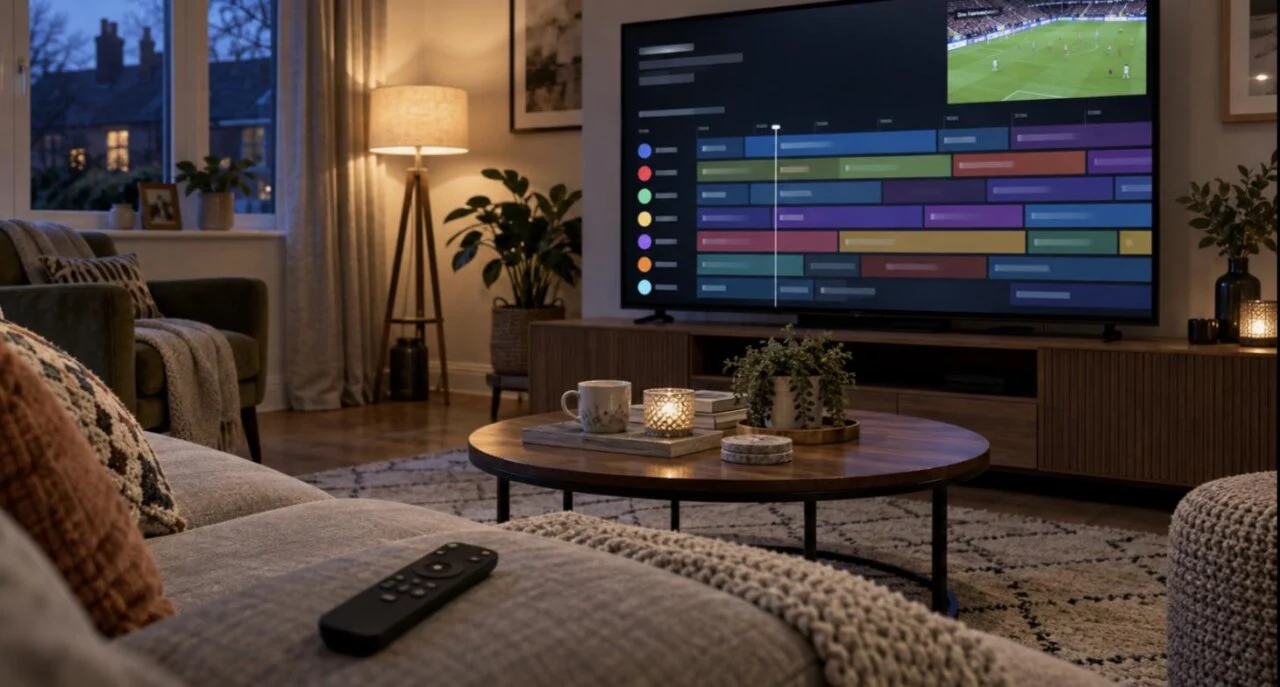
TiviMate is the IPTV player most Canadian viewers end up with on a Firestick or Android TV box, because its program guide, channel switching and catch-up feel like a proper TV box rather than an app. It is Android-only: it runs on Fire TV, Android TV, Nvidia Shield and Chromecast with Google TV, but not on Samsung or LG Smart TVs, Apple TV or iPhone. This TiviMate IPTV guide covers installing it, adding your playlist (Xtream Codes or M3U), the settings that stop buffering, what Premium adds, and what to use instead on the devices it does not support.
Key facts
- What it is: the TiviMate IPTV player app for Android TV devices — it plays a playlist from your provider and includes no channels itself
- Works on: Amazon Firestick / Fire TV, Android TV boxes, Nvidia Shield, Chromecast with Google TV, Android phones and tablets
- Does not work on: Samsung / LG Smart TVs, Apple TV, iPhone / iPad, Windows or Mac (except through an Android emulator)
- Login method: Xtream Codes (server URL, username, password) or an M3U link, typed on the device
- Price: free for one playlist with basic features; Premium is a low yearly subscription bought through the TiviMate Companion app
- Time needed: about 10 minutes on a Firestick, 5 on Android TV
What is it and who is it for?
It is a media player built around live TV. Where IPTV Smarters shows you a list, the TiviMate IPTV interface shows a full-screen program guide with channel logos, what is on now and next, and picture-in-picture preview. Channel changes are fast, favourites and groups are easy to organise, and Premium adds recording, catch-up and multi-view. If you watch a lot of live sport on a Firestick or Android box and you want the guide to feel like a proper cable box, this is the app to pick. If you are on a Samsung or LG TV, skip to the alternatives section.
Which devices run the TiviMate IPTV player?
| Device | TiviMate IPTV support | How to install |
|---|---|---|
| Amazon Firestick / Fire TV (all models) | Yes — the most popular setup | Downloader + the link on tivimate.com |
| Android TV boxes, Nvidia Shield, Chromecast with Google TV | Yes — best performance | Google Play Store |
| Android phones and tablets | Yes (phone layout) | Google Play Store |
| Samsung / LG Smart TVs | No — Tizen and webOS cannot run Android apps | Use IBO Player Pro instead |
| Apple TV, iPhone, iPad | No | Use IBO Player Pro or IPTV Smarters |
| Windows / Mac | Only via an Android emulator | Use IPTV Smarters or VLC instead |
How do you install the TiviMate IPTV app on Firestick and Android TV?
On a Firestick
- Allow apps from unknown sources and install the Downloader app — steps 1 and 2 of our IPTV on Firestick guide show exactly where the toggles are on current Fire OS.
- Open Downloader and enter the Fire TV download link published on tivimate.com — the developer’s own site. Do not use links from forums or Telegram; that is how modified versions of the app spread.
- Press Go, wait for the download, then Install → Done, and let Downloader delete the installer file.
- Hold the Home button → Apps to find the app, and move it to the front row with the Menu button.
On Android TV, Shield or Google TV
Open the Google Play Store on the device, search for the app by name and install it. No sideloading is needed, and updates arrive automatically — one reason an Android TV box is the smoother home for a TiviMate IPTV setup than a Firestick.
How do you add an IPTV playlist?
You need the login from your provider. IPTV Canada sends Xtream Codes (server URL, username, password) and an M3U link in the activation email; either works, but Xtream is better here because the EPG, catch-up and VOD categories are picked up automatically.
- Open the app and choose Add playlist.
- Select Xtream Codes login. Enter the server URL exactly as sent (including
http://and the port, e.g.:8080), then the username and password. Press Next. - Name the playlist (for example “IPTV Canada”), leave the EPG option on, and press Next again. The channel list downloads in one to three minutes.
- Press Done. The TiviMate IPTV guide opens with your channels; the EPG fills in over the next few minutes.
If you have an M3U link instead, choose M3U playlist at step 2 and paste the link; add the EPG URL from your provider if the guide stays empty. No subscription yet? The IPTV Canada 24-hour trial for C$1.99 gives you Xtream details you can drop straight in.
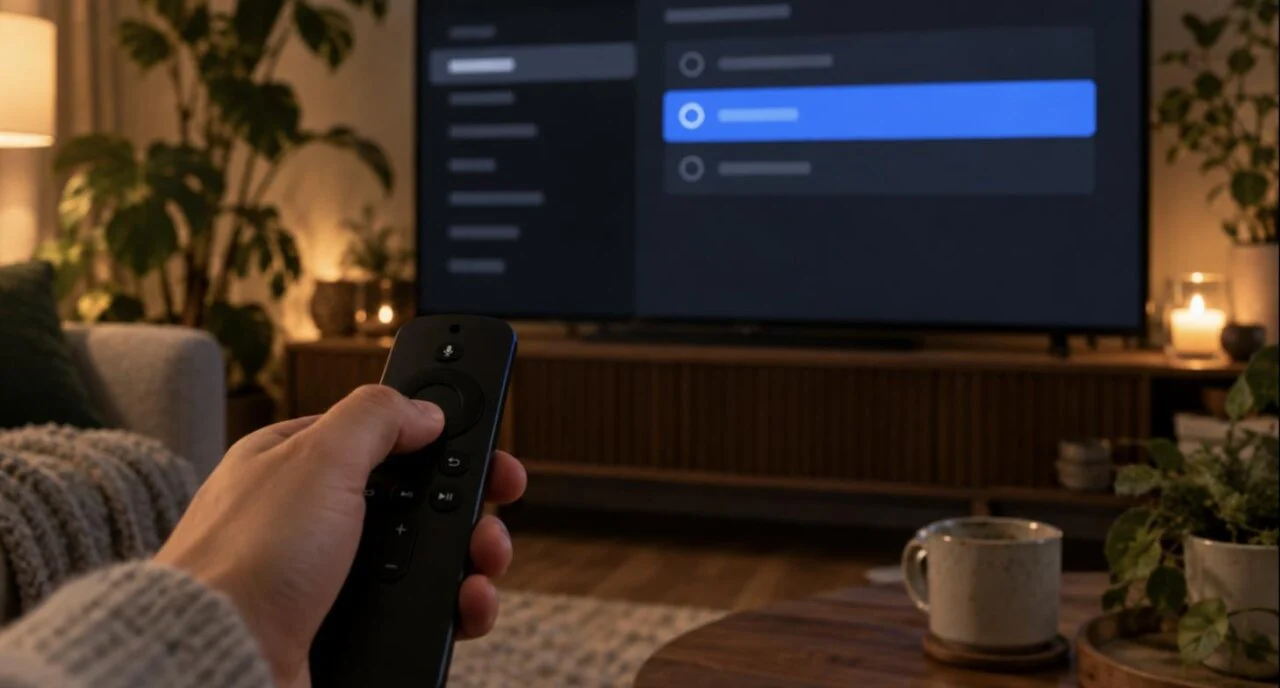
Best TiviMate IPTV settings (EPG, decoder, buffering)
Out of the box the TiviMate IPTV app is already good. These are the six settings we change for customers, in the order that makes the biggest difference.
| Setting | Where | What to choose and why |
|---|---|---|
| Decoder | Settings → Playback → Decoder | Start with Hardware. If sports channels stutter or show a black screen, try Hardware+, then Software — one of the three fixes almost every playback fault. |
| Buffer size | Settings → Playback → Buffer size | Set to Medium or Large on Wi-Fi to smooth out short dips; Small only on Ethernet. |
| Stream format | Settings → Playlists → your playlist → Stream format | MPEG-TS is usually the most stable for live sport; switch to HLS only if TS channels fail to start. |
| Hide groups | Settings → Playlists → Manage groups | Hide the countries you never watch so the guide only lists Canada, USA, Sports, Movies and Kids — faster loading and scrolling. |
| EPG time shift | Settings → EPG → Time shift | Set it so a live game’s start time matches your local clock — the offset differs between Pacific, Mountain, Central, Eastern and Atlantic time. |
| Update interval | Settings → Playlists → Update playlist / EPG | Daily updates keep new channels and the guide current without slowing the app on every launch. |
Two habits on top of the settings: long-press a channel to add it to Favourites (they get their own group at the top of the guide), and lock adult groups behind the parental PIN in Settings if children use the TV.
Is Premium worth it?
The free version handles one playlist and everyday viewing well. Premium is a low yearly subscription bought through the TiviMate Companion app on an Android phone (you sign in with the same account on the TV), and it unlocks the features that make a TiviMate IPTV setup feel complete:
- Multiple playlists — useful if you have a second subscription or a family member’s plan on the same box.
- Catch-up — play programs from the last few days directly from the guide when your provider supports it (IPTV Canada does).
- Recording — schedule recordings to a USB drive or the device storage.
- Multi-view — several matches on screen at once.
- Extra customisation — layouts, channel numbering, backup and restore of your setup.
Our take: for anyone who watches live hockey or football weekly, Premium pays for itself in catch-up alone. For occasional viewing, the free version is enough — and switching later takes two minutes.
TiviMate IPTV on Samsung TV, Apple TV or Windows: what to use instead
“TiviMate Samsung TV”, “TiviMate Apple TV” and “TiviMate Windows” are common searches, and the honest answer is the same for all three: it is not available, because TiviMate is an Android app and those platforms do not run Android. You have two good options.
- Use a different player on that device. On Samsung and LG TVs and on Apple TV, IBO Player Pro is the closest experience and installs from the TV’s own app store. On Windows or Mac, IPTV Smarters or VLC with your M3U link works well.
- Add a C$50–C$100 Android device to the TV. A Fire TV Stick 4K or a Chromecast with Google TV plugs into any HDMI port and runs the app properly. Many customers do this on a Samsung TV purely to get the guide.
Your IPTV Canada login works in every one of these apps (compared in our best IPTV apps guide), so you can mix this app on the living-room Firestick with IBO Player Pro on the bedroom Samsung — the only thing that matters is that your plan has enough connections for the devices streaming at the same time.
TiviMate IPTV troubleshooting
| Problem | Fix |
|---|---|
| “Playlist is not available” / login fails | Re-type the server URL with the port and no spaces; check the username and password character by character. If the plan has expired, renew on the pricing page. |
| Channels load but the EPG is empty | Settings → EPG → Update. With an M3U playlist, add the EPG URL from your provider. Give it ten minutes after first login. |
| Stutter, freezes or black screen on some channels | Change the decoder (Hardware → Hardware+ → Software) and raise the buffer size. |
| Buffering at 8pm | 5 GHz Wi-Fi or Ethernet, clear the app cache, restart the device. If one channel buffers at kick-off only, tell IPTV Canada support which one — we can move you to another stream. |
| Catch-up or recording greyed out | These are Premium features; recording also needs writable storage on the device. |
| App will not install on the Firestick | Downloader must be switched on under Install unknown apps, and the link must be the current one from tivimate.com. |
| Guide is an hour out | Settings → EPG → Time shift: set it so a live game’s start time matches your local Canadian time zone. |
Test it with a real Canadian playlist — 24 hours for C$1.99
Every channel, 4K VOD, catch-up and live sports on your Firestick or Android box. Payment instructions arrive by email in 5 minutes to 3 hours; activation usually takes about 5 minutes once paid.
TiviMate IPTV FAQ
Is the app free?
Yes for one playlist with the core features. Premium is a low yearly subscription bought through the TiviMate Companion app on an Android phone; it adds multiple playlists, catch-up, recording and multi-view.
Does it come with channels?
No. It is a player only. You add a playlist from an IPTV provider such as IPTV Canada using Xtream Codes or an M3U link.
Can I install TiviMate on a Samsung or LG Smart TV?
No. Samsung (Tizen) and LG (webOS) TVs cannot run Android apps. Use IBO Player Pro from the TV’s app store, or plug a Firestick or Chromecast with Google TV into the TV and run the app on that.
Is there TiviMate for Apple TV or iPhone?
No. The app is Android-only. On Apple devices use IBO Player Pro or IPTV Smarters with the same login.
Can I use TiviMate on Windows?
Only through an Android emulator, which is slow and awkward. IPTV Smarters for Windows or VLC with your M3U link is the better option on a computer.
TiviMate IPTV vs IPTV Smarters: which is better?
On a Firestick or Android box, TiviMate has the better guide, faster channel switching and catch-up. IPTV Smarters is simpler and free, and it is the only one of the two available on Apple devices.
Why does it buffer when other apps do not?
Usually the decoder or buffer setting. Switch the decoder (Hardware, Hardware+, Software) and raise the buffer size; use 5 GHz Wi-Fi or Ethernet. The stream itself is the same across apps.

Get the next IPTV guide by email
New setup guides, app comparisons and buffering fixes for Canadian viewers – about two emails a month, no spam, unsubscribe in one click.