
How to Set Up IPTV in Canada — Step-by-Step Installation for Every Device
Pick your device below and follow the guide to install IPTV in about five minutes. Most IPTV Canada customers in Canada are watching live channels, sports and 4K movies within five minutes of receiving their login details — no technician visit, no rented box, no contract.
- Works on Firestick, Smart TV, Android, Apple, PC
- Free CR Player included
- 24/7 WhatsApp setup help
What You Need to Install IPTV from IPTV Canada
Every IPTV Canada plan works the same way on every device, and you install IPTV once per device. Here is the two-minute overview before you jump into your device guide.
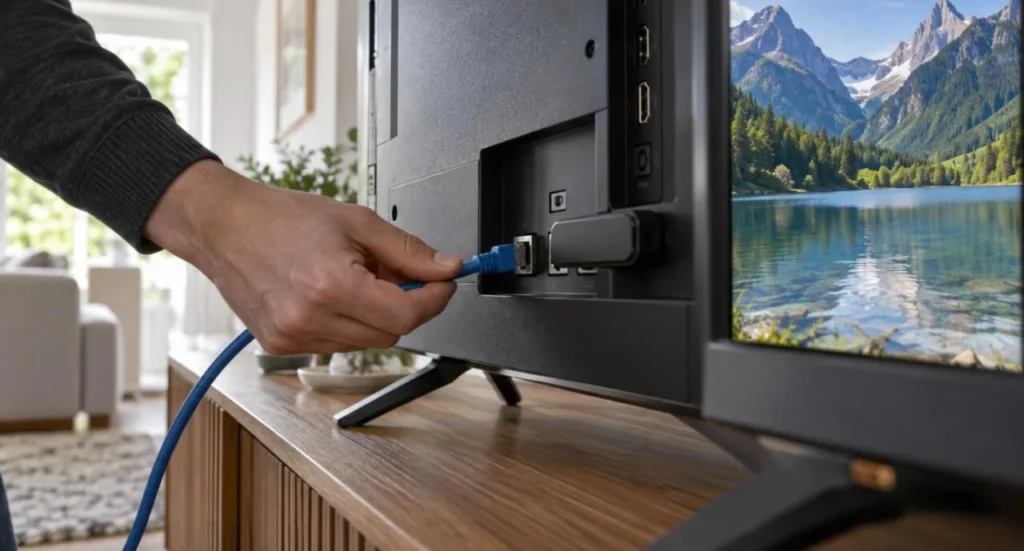
Your subscription is the SIM card, the player is the phone
IPTV Canada sells the IPTV subscription: the live channels, the movies and series library and the servers behind them. To watch, you load that subscription into a player app on your device — exactly like putting a SIM card into a phone. Our recommended player, CR Player, is included free with every plan and is the app we use in most guides below. You can also use any other player you prefer, such as IPTV Smarters Pro, TiviMate or iMPlayer; some third-party players sell their own premium upgrades, which are separate from IPTV Canada.
Have these ready before you install IPTV (from your welcome email)
- Server URL — starts with http:// and includes a port number
- Username and Password — case-sensitive, no spaces
- M3U link — only needed for VLC or MyIPTV Player
- Internet — 10 Mbps for HD, 25 Mbps for 4K, wired if possible
- 5 minutes and the TV remote
How to Install IPTV on Every Device in Canada
Tap your device to open the full guide to install IPTV with the recommended app, numbered steps, fixes for common errors and a device-specific FAQ. If you prefer a longer read, our blog has a dedicated walkthrough to install IPTV on a Firestick in Canada, a full TiviMate guide, an IBO Player Pro guide for Samsung and LG TVs, and a comparison of the best IPTV apps in Canada for every device. Fire TV users can get the sideloading tool from the official Downloader app page.
How to Install IPTV on Amazon Fire TV Stick (Canada Guide)
The Amazon Fire TV Stick is the most popular way to watch IPTV in Canada, and for good reason: it is inexpensive, it plugs into any HDMI TV, and it runs the best IPTV players. This guide shows you how to sideload CR Player — the app we recommend and include free with every IPTV Canada plan — and connect it to your subscription in under ten minutes. The same steps work on Fire TV Stick Lite, Fire TV Stick 4K, 4K Max and Fire TV Cube sold in Canada.
Part 1: Install the Downloader app (the tool you use to install IPTV)
- From the Fire TV home screen, go to Find → Search and type Downloader.
- Select the orange Downloader app by AFTVnews and press Get / Download. Wait until it says “Ready to launch” — but do not open it yet.
- Press the Home button on your remote to return to the main screen.
Part 2: Allow Downloader to install apps
- Go to Settings → My Fire TV → About and click on Fire TV Stick seven times until it says “You are now a developer”.
- Press Back, open Developer Options and turn on ADB debugging.
- Select Install unknown apps and switch Downloader to ON.
- Open Downloader, press Allow for file access and dismiss the welcome message. In the URL box, enter the CR Player download link or Downloader code from your IPTV Canada welcome email, press Go, then Install and Open.
Part 3: Install IPTV login — activate CR Player with your IPTV Canada details
- Open CR Player. On the first screen the app shows a MAC address and a Device Key, plus the address of its activation website. Keep the TV on this screen.
- On your phone or laptop, open the CR Player activation website shown on screen and sign in with the MAC address and Device Key exactly as displayed (the key is case-sensitive).
- Choose Add Playlist and select Xtream Codes API. Give the playlist any name (for example “IPTV Canada”), then paste the Server URL, Username and Password from your IPTV Canada welcome email. Do not add spaces before or after them.
- Save the playlist. Back on your Fire TV Stick, press Refresh (or close and reopen CR Player). Your 34,000+ live channels, movies and series load automatically within about a minute.
- Open Live TV, pick a category such as Canadian channels or a sports category and press OK on a channel. The EPG (TV guide) fills in the background — give it a few minutes on first launch.
Alternative: Install IPTV Smarters Pro or TiviMate on Fire TV
If you prefer a different player, both IPTV Smarters Pro and TiviMate install through Downloader in the same way. Open the app, choose Login with Xtream Codes API (Smarters) or Add playlist → Xtream Codes (TiviMate), enter your IPTV Canada server URL, username and password, and the channel list loads. TiviMate’s free version supports one playlist; its Premium licence is sold by TiviMate, not by IPTV Canada.
Yes. Sideloading apps is a standard Android feature that Amazon allows on every Fire TV device. Downloader itself is an official app on the Amazon Appstore.
The Fire TV Stick 4K or 4K Max. Both decode 4K HEVC streams smoothly and have Wi-Fi 6 on the Max model, which helps during busy playoff evenings.
Not for IPTV Canada to work. If you notice buffering only in the evenings, try a wired connection or the 5 GHz Wi-Fi band first; a VPN app from the Amazon Appstore is an option some customers use for privacy.
Your subscription period has ended or the login details were changed. Check your plan end date in your welcome email, or message IPTV Canada support on WhatsApp for an instant renewal.
How to Install IPTV on Android TV, Google TV and Android Boxes
Here is how to install IPTV on Android TV. Android TV and Google TV are built into Sony, TCL, Hisense and Philips televisions, the Chromecast with Google TV, Nvidia Shield, Xiaomi Mi Box and hundreds of cheaper Android boxes sold in Canada. Because they run full Android, you install IPTV the same way you install any other app. Follow the method that matches your device.
Method 1: Install CR Player with Downloader (all Android TV devices)
- Open the Google Play Store on your TV, search for Downloader by AFTVnews and install it.
- Go to Settings → Device Preferences → Security & restrictions → Unknown sources (on Google TV: Settings → Apps → Security & restrictions) and allow Downloader.
- Open Downloader, press Allow, then enter the CR Player link or code from your IPTV Canada welcome email and press Go.
- Press Install, wait for the “App installed” message and choose Open.
Part 3: Install IPTV login — activate CR Player with your IPTV Canada details
- Open CR Player. On the first screen the app shows a MAC address and a Device Key, plus the address of its activation website. Keep the TV on this screen.
- On your phone or laptop, open the CR Player activation website shown on screen and sign in with the MAC address and Device Key exactly as displayed (the key is case-sensitive).
- Choose Add Playlist and select Xtream Codes API. Give the playlist any name (for example “IPTV Canada”), then paste the Server URL, Username and Password from your IPTV Canada welcome email. Do not add spaces before or after them.
- Save the playlist. Back on your Android TV, press Refresh (or close and reopen CR Player). Your 34,000+ live channels, movies and series load automatically within about a minute.
- Open Live TV, pick a category such as Canadian channels or a sports category and press OK on a channel. The EPG (TV guide) fills in the background — give it a few minutes on first launch.
Method 2: Install IPTV Smarters Pro or TiviMate from Google Play
- Open the Google Play Store and search for IPTV Smarters Pro or TiviMate IPTV Player. Install and open the app.
- Choose Login with Xtream Codes API (Smarters) or Add playlist → Xtream Codes (TiviMate).
- Enter any name, then the Server URL, Username and Password from your IPTV Canada email and press Add User / Next.
- Keep Live TV, Movies and Series selected and wait about a minute for the content to download. You are ready to watch.
Yes. Any box running Android 7 or newer with at least 2 GB of RAM will run CR Player and IPTV Smarters. For smooth 4K, we recommend a box with a quad-core processor and Wi-Fi 5 or an Ethernet port.
Yes. Install IPTV with the CR Player APK through the built-in browser or a USB stick, then follow Part 3 above to activate it.
Ethernet if you can. A wired connection removes Wi-Fi interference and is the single biggest fix for buffering on large 4K TVs.
Voice search works within the Google TV launcher; inside CR Player you browse channels with the directional pad and the built-in search box.
How to Install IPTV on Samsung (Tizen) and LG (webOS) Smart TVs
Here is how to install IPTV on a Samsung or LG TV. Samsung and LG make the two most common Smart TVs in Canadian homes, and neither runs Android. Instead you install an IPTV player directly from the Samsung Apps or LG Content Store and activate it online with the TV’s MAC address. This is the easiest way to install IPTV of all — no Firestick, no sideloading, no extra remote. CR Player is available on Samsung models from 2017 and LG models from 2018 onwards.
Part 1: Install IPTV (CR Player) from your TV’s app store
- Press the Home button on your remote and open Apps (Samsung) or the LG Content Store (LG).
- Use the search icon and type CR Player. Select the app and press Install. If CR Player is not listed in your region, search for IBO Player — the activation steps are identical.
- Once installed, open the app. You will see a screen with your MAC address, a Device Key and the address of the activation website. Leave this screen open.
Part 2: Install IPTV playlist — add your IPTV Canada playlist online
- On your phone, tablet or computer, visit the activation website shown on your TV and enter the MAC address and Device Key exactly as displayed.
- Click Add Playlist, choose the Xtream Codes option and type a playlist name such as “IPTV Canada”.
- Paste the Server URL, Username and Password from your IPTV Canada welcome email and press Save.
- Back on the TV, press Refresh or restart CR Player. Your channels, movies and series appear within a minute — open Live TV and start watching.
Older Tizen versions may not list CR Player. The quickest fix is a Fire TV Stick (around C$50–70 in Canada) plugged into any HDMI port — follow the Fire TV Stick tab and you get the full 4K experience.
Inside CR Player itself: it is printed on the first screen you see when the app opens. It is a virtual MAC, so it can differ from the one in your TV network settings — always use the one shown in the app.
Yes, if your plan includes two or more devices. Single-device plans allow one stream at a time; you can upgrade from the pricing page at any time.
Check that you selected Xtream Codes (not M3U) when adding the playlist, that the server URL includes the http:// prefix and port, and that there are no spaces in the username or password.
How to Install IPTV on iPhone, iPad and Apple TV
Here is how to install IPTV on Apple devices. Apple does not allow sideloading, but you do not need it: several excellent IPTV players are available on the App Store and work perfectly with IPTV Canada’s Xtream Codes login. iMPlayer is our top pick for iOS and tvOS because it is fast, supports 4K, has a proper TV guide and can AirPlay to any Apple TV or AirPlay-compatible TV.
Method 1: Install IPTV with iMPlayer on iPhone, iPad or Apple TV
- Open the App Store, search for iMPlayer – IPTV Player and install it (on Apple TV, use the App Store on the TV itself).
- Open the app and tap Add a Playlist, then choose the XC API (Xtream Codes) option.
- Enter a playlist name, then the Portal / Server URL, Username and Password from your IPTV Canada welcome email.
- Tap Add Playlist and wait for the channels, movies and series to download. Tap any category to start streaming.
Method 2: Install IPTV Smarters Player (iOS)
- Install IPTV Smarters Player from the App Store and open it.
- Tap Add User → Login with Xtream Codes API.
- Type any name, then your IPTV Canada server URL, username and password, and tap Add User.
- Tap Live TV, choose a category (Canadian channels, sports, movie channels, Kids and so on) and tap a channel to play it. Use the cast icon to send the picture to an Apple TV or AirPlay TV.
iMPlayer is the most complete free option: Xtream Codes support, EPG, catch-up, favourites and AirPlay. IPTV Smarters Player is simpler and ideal if you only want live channels.
Yes. Install iMPlayer or CR Player from the Apple TV App Store and add your IPTV Canada playlist. Apple TV 4K handles 4K HEVC streams flawlessly.
Yes, if your Samsung or LG TV supports AirPlay 2 (most models since 2018). Tap the AirPlay icon in the player and select the TV. For the best quality, install CR Player directly on the TV instead.
The guide loads a few minutes after the first launch. Make sure “Auto-update EPG” is enabled in the app settings and leave the app open for a couple of minutes.
How to Install IPTV on Android Phones and Tablets
Watching IPTV Canada on a Samsung Galaxy, Google Pixel, Xiaomi, OnePlus or any Android tablet takes three minutes and needs nothing more than the Play Store. It is perfect for catching the game on the bus or train, and every mobile player below can cast to a Chromecast or Android TV with one tap.
Method 1: Install IPTV Smarters Pro (Google Play)
- Open the Google Play Store, search for IPTV Smarters Pro and install it.
- Open the app, accept the terms and tap Login with Xtream Codes API.
- Enter any name, then the Username, Password and Server URL from your IPTV Canada email. Tap Add User.
- Wait a few seconds while the content list downloads, then tap Live TV, Movies or Series. To cast, tap the cast icon at the top right and choose your TV.
Method 2: Install IPTV with iMPlayer Mobile
- Install iMPlayer from Google Play and open it.
- Tap Add a Playlist → XC API, enter a name and your IPTV Canada server URL, username and password.
- Tap Add Playlist. The app downloads the channel list and TV guide; tap any channel to play.
Method 3: Install IPTV with TiviMate Mobile
- Install TiviMate IPTV Player from Google Play. Open it and tap Add playlist → Xtream Codes.
- Enter your IPTV Canada server URL, username and password and tap Next, then Done.
- Wait for the channels to load. Note that VOD and multiple playlists require TiviMate Premium, sold by TiviMate.
Yes. IPTV Smarters Pro and iMPlayer both support Chromecast and Android TV casting via the cast icon. Screen mirroring also works on Samsung and LG TVs.
Roughly 1 GB per hour in SD, 3 GB per hour in HD and up to 7 GB per hour in 4K. Use Wi-Fi where possible.
Almost always a typo: check for spaces at the end of the username or password, and make sure the server URL starts with http:// and includes the port number.
A 1-device plan lets you install on both but stream on one at a time. Choose a 2-device or larger plan to watch on your phone while the family watches the TV.
How to Install IPTV on a Windows PC or Mac
A laptop is a great second screen for IPTV Canada — ideal for the office, a student apartment or a weekend at the cottage. The desktop version of IPTV Smarters Pro runs on Windows 10/11 and macOS and gives you the same channel list, EPG and on-demand library you get on the TV.
Method 1: Install IPTV Smarters Pro for Windows and Mac
- Visit the official IPTV Smarters website, open the Downloads section and download the Windows or macOS installer.
- Run the installer. If Windows SmartScreen or macOS Gatekeeper asks for confirmation, choose Run anyway / Open. Installation takes under two minutes.
- Launch the app, click Add New User and choose Login with Xtream Codes API.
- Enter any name, then your IPTV Canada Username, Password and Server URL. Click Add User and wait for the content to load.
- Choose Live TV, Movies or Series. Double-click the player window for full screen.
Method 2: Install IPTV with MyIPTV Player from the Microsoft Store (Windows 10/11)
- Open the Microsoft Store, search for MyIPTV Player and install it.
- Go to Settings → Add new playlist and EPG source. Give it a name and paste the M3U link from your IPTV Canada email, then click Add remote list.
- Return to Settings, pick the playlist from the Select channel playlist drop-down, then open the Channels tab and start watching.
Method 3: Install IPTV in VLC Media Player (quick test)
- Install VLC from videolan.org and open it.
- Choose Media → Open Network Stream, paste your IPTV Canada M3U link and press Play. Use View → Playlist to browse channels. VLC has no EPG, so we suggest it only for testing.
IPTV Smarters Pro for the full experience with EPG and on-demand; MyIPTV Player if you prefer a lightweight Microsoft Store app.
Yes. The macOS build of IPTV Smarters Pro runs natively, and iMPlayer for iPad can also be installed from the Mac App Store on Apple Silicon Macs.
IPTV Smarters Pro includes a basic recording function. Please check the terms of the content you record.
Download only from the official IPTV Smarters website. Generic “unknown publisher” warnings are common for smaller developers; the official installer is clean.
How to Install IPTV on Formuler Z and BuzzTV Boxes
Here is how to install IPTV on a Formuler or BuzzTV box. Formuler Z8, Z10, Z11 and BuzzTV XRS/XPL boxes are premium Android boxes built specifically for IPTV, with a dedicated player already on board. You do not need to install anything — just add your IPTV Canada Xtream Codes details to the built-in app. No MAC registration is required.
Formuler Z: MyTVOnline 2 or 3
- From the Formuler home screen open MyTVOnline 3 (or MyTVOnline 2 on older firmware).
- Go to Menu → Connections → Add Portal.
- Enter a Portal name (for example “IPTV Canada”), paste the Portal / Server URL, enable Login required and type your IPTV Canada Username and Password.
- Press Connect. The channels, EPG and VOD load in under a minute. Use the Guide button on the remote for the full TV guide.
BuzzTV: XC API Login
- From the BuzzTV home screen open Server Settings.
- Select XC API Login → Add XC API Login.
- Enter a portal name, your IPTV Canada Portal URL, Username and Password, then press Connect.
- Go back to the home screen and open Live TV. Done.
No. Formuler and BuzzTV use the Xtream Codes login (username and password), so there is nothing to register.
MyTVOnline 3 on any box that supports it: it has a faster guide, better catch-up and improved 4K playback.
Yes — Formuler runs Android TV, so you can follow the Android TV / Box tab and install CR Player alongside MyTVOnline.
Confirm “Login required” is enabled, re-enter the username and password without spaces, and check the portal URL includes http:// and the port number.
How to Install IPTV on MAG 250, 322, 420, 524 and Newer Boxes
Infomir MAG boxes (MAG 250/254/256, 322/324, 420/424, 520/524 and Linux-based 4K models) use a portal URL instead of a username and password. IPTV Canada supports MAG boxes: after ordering, send us the MAC address printed on the sticker underneath the box (it starts with 00:1A:79) and we will link it to your subscription and send you the portal URL.
Set up the IPTV Canada portal on your MAG box
- Turn on the box and open Settings → System settings → Servers → Portals (on newer boxes: Settings → Servers → Portals).
- In Portal 1 name type “IPTV Canada” and in Portal 1 URL enter the portal address we sent you, exactly as written.
- Press OK to save, then go back and choose Restart portal (or simply reboot the box by unplugging it for 10 seconds).
- After the reboot the IPTV Canada interface loads with all live channels, the TV guide and on-demand. Use the TV button on the remote to browse categories.
On the sticker on the underside of the box, and in Settings → System information. It always begins with 00:1A:79.
MAG boxes use the portal method instead. Send us your MAC address and we will activate the portal for the same subscription — no extra cost.
No. MAG 254/256 are 1080p boxes. For 4K choose a MAG 524w3 or 540w3, or a Fire TV Stick 4K.
Usually a typo in the portal URL or the MAC address not yet registered. Double-check the URL, reboot the box and contact support if it still hangs.
Problems After You Install IPTV: Troubleshooting Tips for Canadian Viewers
Nine out of ten problems after you install IPTV are solved by one of these checks. Work through them in order before contacting support — and if you want to understand what speed each quality level needs, read our guide to IPTV streaming in Canada first.
Check your internet speed. Run a test at fast.com on the device you are using. You need a stable 10–15 Mbps for HD and 25 Mbps for 4K. If the number is far below what your plan from Bell, Rogers, Telus, Vidéotron or your regional ISP promises, restart the modem and router.
Re-check your login details. The server URL, username and password are case-sensitive. Delete the playlist and add it again, typing each character carefully — trailing spaces are the number-one cause of “invalid login”.
Go wired or move to 5 GHz. Wi-Fi interference from neighbours is common in Canadian condos and apartment buildings. Plug an Ethernet cable into your box or TV, or connect to your router’s 5 GHz network for a cleaner signal.
Restart everything. Power-cycle the streaming device, then the router and modem (unplug for 30 seconds). This clears stuck DNS and memory issues that cause freezing pictures.
Clear the app cache. On Fire TV: Settings → Applications → Manage installed applications → your player → Clear cache. On Android TV: Settings → Apps → the player → Clear cache. Then reopen the app.
Update the player app. An outdated CR Player, IPTV Smarters or TiviMate can fail to load new channel formats. Check for an update in the app store or reinstall via Downloader.
Rule out your home network if evenings buffer. If IPTV Canada is perfect in the daytime but stutters at 8 pm, the usual culprits are a congested Wi-Fi channel, other devices downloading, or an older router. Wired Ethernet or a 5 GHz connection fixes most cases; some customers also use a VPN, which is optional.
Pick the right stream version. Most channels exist in HD and 4K/UHD versions. Older Fire Sticks, MAG 254 and 2016 Smart TVs cannot decode 4K — select the HD version and the stutter disappears.
Frequently Asked Questions About Installing IPTV in Canada
Short, straight answers to the questions Canadian customers ask most before and after setup.
About five minutes on most devices. You install a player app, enter the username and password from your welcome email, and the channel list loads on its own. There is no technician visit, no satellite dish and no extra equipment to buy.
CR Player — it is free with every IPTV Canada plan, it runs on Fire TV, Android TV, Samsung and LG Smart TVs and Apple TV, and it activates online with your MAC address so you never type a long server URL on the TV remote. IPTV Smarters Pro and iMPlayer are excellent alternatives on phones and computers.
Open your TV’s app store, install CR Player (or IBO Player), note the MAC address and Device Key shown in the app, add your IPTV Canada Xtream Codes playlist on the activation website and refresh. The full steps are in the Samsung & LG Smart TV guide above.
No. If you already own a Smart TV, a Fire TV Stick, a phone, a tablet or a laptop, you can watch without buying anything. A Fire TV Stick 4K (about C$70) is the best upgrade if your TV is older than 2017.
10–15 Mbps for stable HD and 25 Mbps for 4K. Any standard Canadian cable or fibre package qualifies, and most fixed-wireless plans do too. A wired Ethernet connection beats Wi-Fi for large 4K TVs.
Yes. Take the 24-hour trial for C$1.99, run the setup guide for your device and check the channels, sports and on-demand library on your own connection. Every paid plan is also covered by a 7-day money-back guarantee.
You can install the app on as many devices as you like, but the number of simultaneous streams depends on your plan (1 to 4 devices). See the pricing page to pick the right size for your household.
IPTV is simply television delivered over the internet — the fibre TV services sold by Canada’s major telecoms use the same technology. It is your responsibility to make sure you have the right to view the content you access in your jurisdiction.
The guide downloads in the background after the first launch and can take a few minutes. Make sure EPG auto-update is enabled in the player settings and leave the app open.
They are three ways to load the same subscription. Xtream Codes (server URL + username + password) is used by CR Player, IPTV Smarters, TiviMate and iMPlayer. M3U is a playlist link for VLC and MyIPTV Player. MAG boxes use a portal URL linked to the box’s MAC address.
Install IPTV Today — Ready to Upgrade Your TV?
Join Canadian households streaming 34,000+ live channels, hockey in 4K and 195,000+ movies & series — on Firestick, Smart TV, phone or tablet. Set up in minutes, priced in CAD, backed by 24/7 WhatsApp support.
- 7-Day Money-Back Guarantee
- No Auto-Renewal
- 24/7 WhatsApp Support