
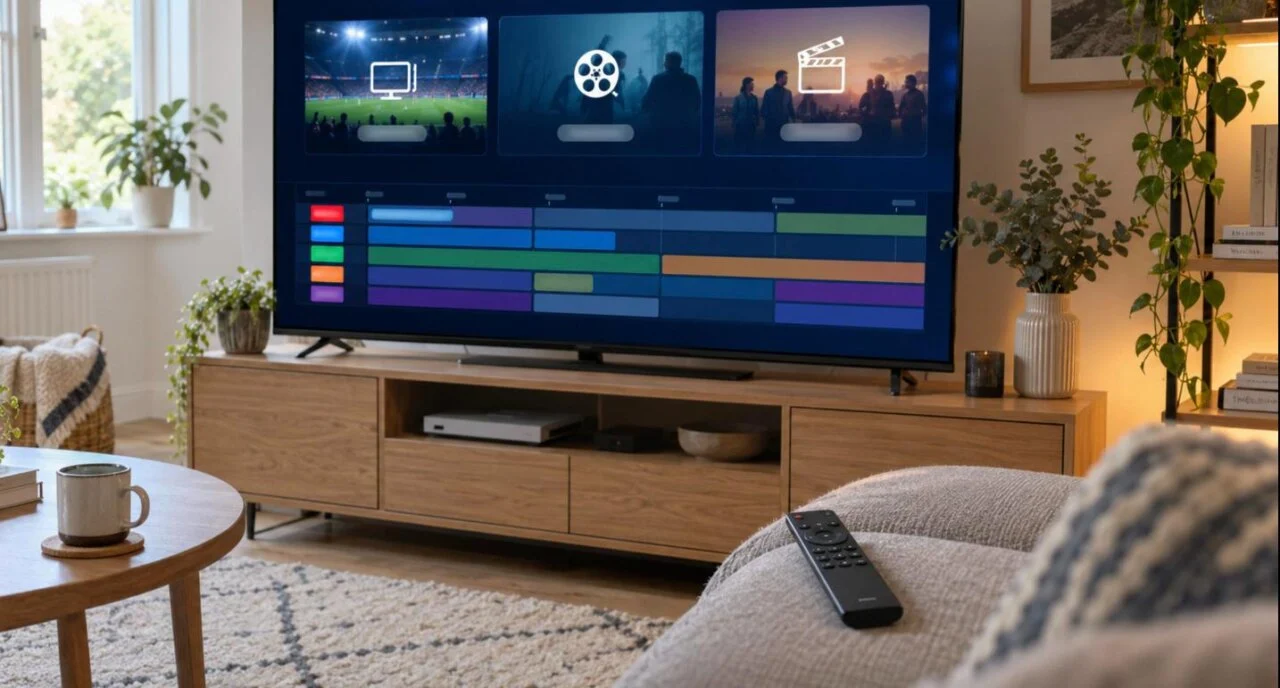
IBO Player Pro is an IPTV player app for Samsung and LG Smart TVs, Firestick, Android and Apple devices. Unlike IPTV Smarters or TiviMate, you do not type a login into the TV: the app shows a MAC address and a device key, and you add your playlist (M3U or Xtream Codes) on the developer’s activation website from a phone or laptop. The whole setup takes about five minutes. This guide covers installing the app, activating it, adding a playlist, the best settings, and the fixes for the errors we see most often from IPTV Canada customers.
Key facts
- What it is: an IPTV player app (it plays a playlist from your provider; it does not include any channels itself)
- Works on: Samsung and LG Smart TVs, Amazon Firestick / Fire TV, Android TV and boxes, iPhone / iPad / Apple TV, Windows (via emulator)
- Login method: MAC address + device key entered on the IBO Player Pro website, then an M3U link or Xtream Codes
- Price: free trial period, then a small one-off activation fee per device (see the developer’s site for the current price)
- Time needed: about 5 minutes
- You need: your IPTV Canada login (M3U link or Xtream details) — sent by email after activation
What is IBO Player Pro?
IBO Player Pro is a media player for IPTV playlists. It is the app Canadian households pick most often for Samsung and LG TVs, because those TVs cannot sideload Android apps and it is available directly in their app stores. It reads an M3U playlist or Xtream Codes login from your provider, builds a channel list with a program guide, and plays live TV, catch-up and video on demand.
Two things make it different from the other players in our IPTV apps comparison. First, activation is tied to the device’s MAC address rather than a username, so you set the playlist up once on a website and every profile on that TV uses it. Second, the developer charges a one-off activation fee per device after a trial period; there is no monthly cost for the app itself. Note that IBO Player (the original app) and IBO Player Pro are separate apps from the same developer with separate activation pages — this guide is about the Pro version, which is the one with current Smart TV support.
Which devices run IBO Player Pro?
| Device | How to get the app | Notes |
|---|---|---|
| Samsung Smart TV (Tizen, 2016+) | Samsung Apps store → search by name | The most common setup in Canada; no sideloading needed |
| LG Smart TV (webOS) | LG Content Store → search by name | Same MAC-based activation as Samsung |
| Amazon Firestick / Fire TV | Downloader app + the link from the developer’s site | See our IPTV on Firestick guide for enabling unknown sources |
| Android TV / Android box / phone | Google Play or the developer’s APK | Works on Nvidia Shield, Chromecast with Google TV, Xiaomi boxes |
| iPhone / iPad / Apple TV | App Store | Activation works the same way; AirPlay to a TV if needed |
| Windows / Mac | Android emulator | Not ideal — use IPTV Smarters or VLC on a computer instead |
How do you install IBO Player Pro?
Samsung and LG Smart TVs
- Press the Home button and open Apps (Samsung) or the LG Content Store.
- Search for the app by name and select Install. Make sure it is the Pro app from the same developer as the store listing shows — there are copycat apps with similar names.
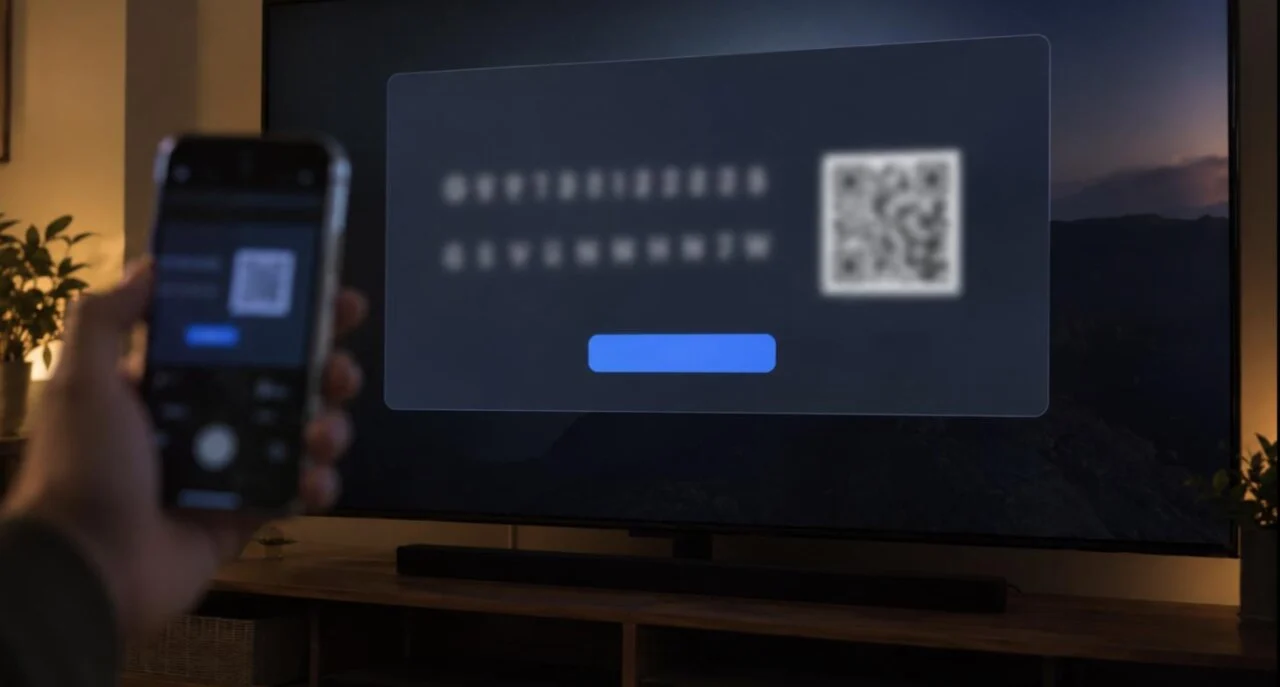
- Open the app. The first screen shows a MAC address and a device key. Leave the TV on this screen; you will need both in the next step.
Firestick and Android
- On a Firestick, allow apps from unknown sources and install Downloader (steps 1 and 2 of the Firestick guide). On Android TV you can usually install from Google Play instead.
- In Downloader, enter the download link published on the developer’s own website (iboproapp.com). Only use that link — copies of the app hosted elsewhere are where modified, unsafe versions come from.
- Install, open the app and note the MAC address and device key on screen.
How do you activate IBO Player Pro?
The app runs for a trial period without payment so you can test it. After that it asks for a one-off activation per device. Either way, activation and playlist management happen on the developer’s website, not on the TV:
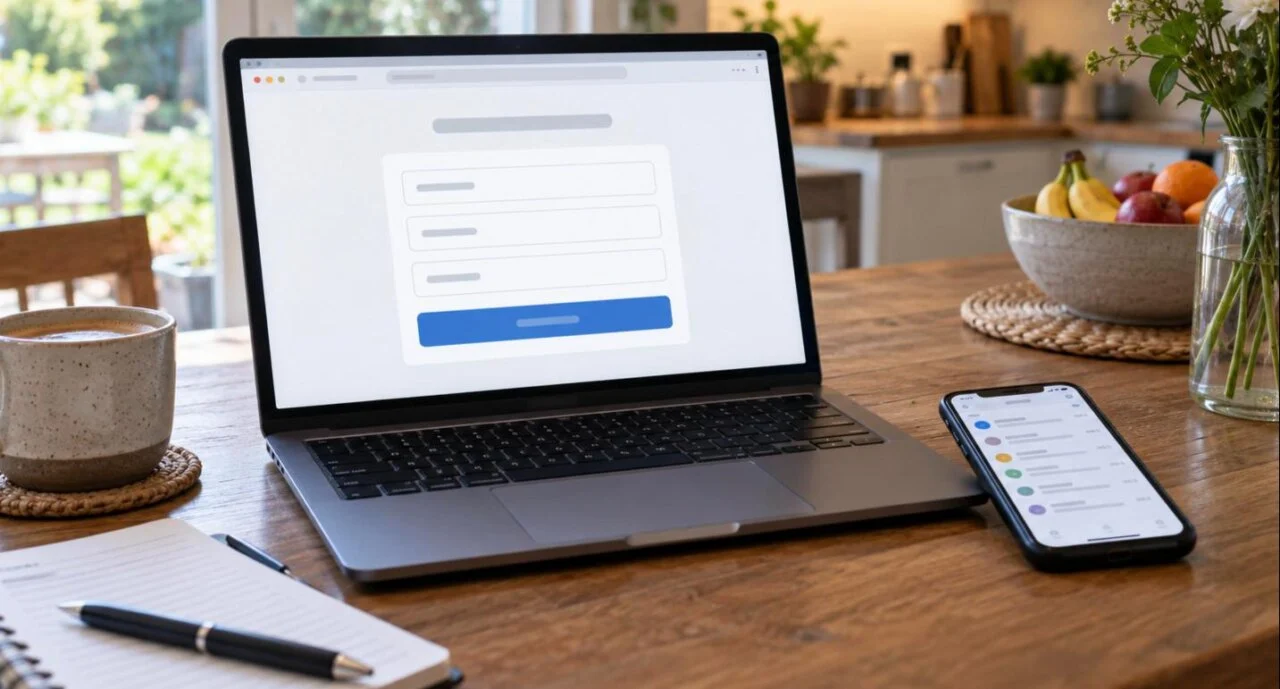
- On a phone or laptop, open the activation / playlist page from the developer’s site.
- Enter the MAC address and device key exactly as shown on the TV (the key is case-sensitive).
- If the trial has ended, pay the one-off activation fee on that page. Keep the receipt email — it is your proof if you replace the TV and need the licence moved.
- You are now on the playlist screen for that device. Continue with the next section.
IPTV Canada customers can skip the typing: send us the MAC address and device key on WhatsApp and we add your playlist for you while you wait.
How do you add a playlist to IBO Player Pro?
Your provider gives you either an M3U link or Xtream Codes (server URL, username, password). The app accepts both; Xtream is slightly better because the EPG and VOD categories load automatically.
- On the playlist page for your device, choose Add playlist (or the Xtream option if offered).
- Give it a name (for example “IPTV Canada”) and paste the M3U link from your activation email — or enter the server URL, username and password.
- Turn on protect playlist with a PIN if children use the TV, then save.
- On the TV, press Reload or restart the app. The playlist appears; the first load takes one to three minutes while channels and the guide download.
No subscription yet? The IPTV Canada 24-hour trial for C$1.99 gives you an M3U link and Xtream details that work in the app straight away, so you can test the app and the service together.
Best settings, EPG and parental control
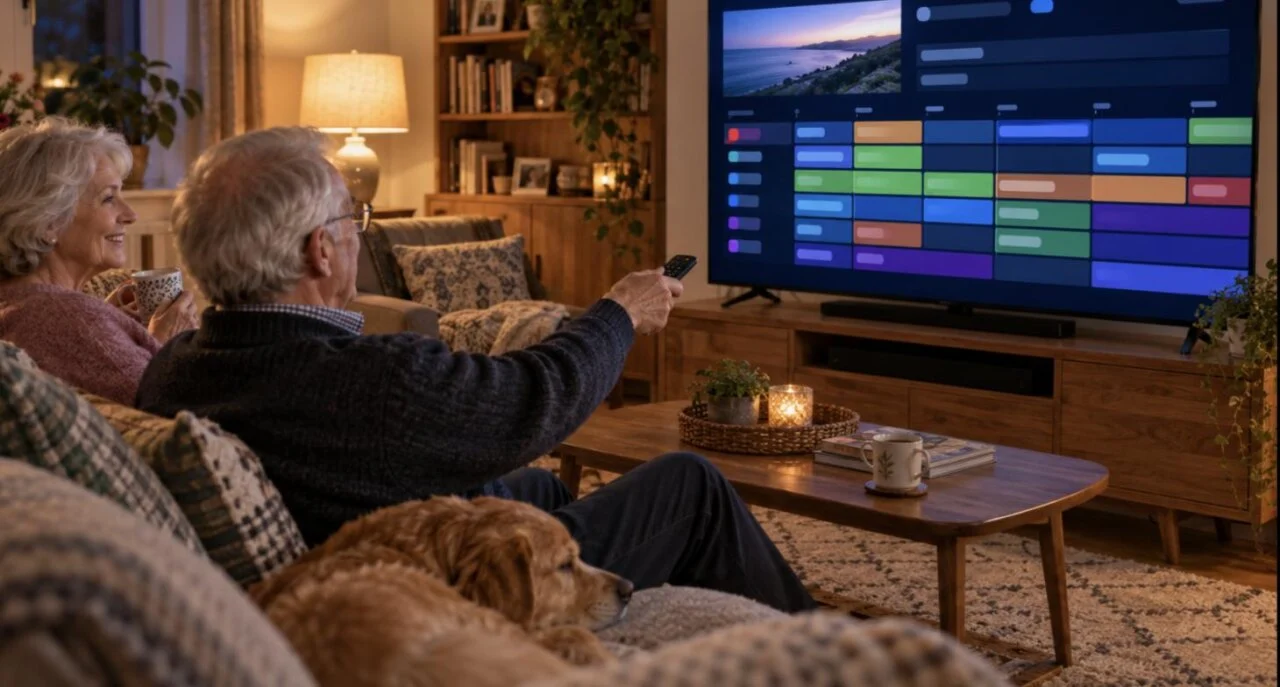
- Player / decoder. If a channel shows a black screen or stutters, open Settings and switch the player engine (the app offers more than one). One usually plays what the other cannot.
- EPG. With Xtream Codes the guide fills automatically. If it stays empty, reload the playlist from the website and restart the app. If the times are an hour out, adjust the time shift setting to your local Canadian time zone.
- Hide groups. Go to Live TV → categories and hide the countries you never watch; the Canada, USA, Sports, Movies and Kids groups are all most households need.
- Favourites. Long-press or use the menu button on a channel to add it to Favourites, which sits at the top of the list.
- Parental control. Lock adult groups with a PIN in Settings; the playlist PIN on the website stops anyone changing the playlist from the TV.
- Network. Use the 5 GHz Wi-Fi band or Ethernet on the TV; no player app can fix a weak Wi-Fi signal.
IBO Player Pro vs IBO Player vs IPTV Smarters vs TiviMate
| App | Best on | Login | Cost | Verdict |
|---|---|---|---|---|
| IBO Player Pro | Samsung / LG Smart TVs, families | MAC + key on website, M3U or Xtream | Trial, then one-off fee per device | The easiest option on a Smart TV; playlist managed from a phone |
| IBO Player (original) | Older Smart TVs | MAC + key on its own site | One-off fee | Fine if already installed; new installs should use Pro |
| IPTV Smarters Pro | Firestick, Android, iOS | Xtream login typed on the device | Free | Simplest for beginners on a Firestick |
| TiviMate | Firestick, Android TV | Xtream or M3U on the device | Free (1 playlist) / Premium yearly | Best guide and channel switching; not available on Samsung/LG |
Troubleshooting
| Problem | Fix |
|---|---|
| Playlist added on the website but not showing on the TV | Press Reload in the app or restart it. Check the MAC address on the website matches the TV exactly — one wrong character creates a different device. |
| “Device not activated” or “trial expired” | The trial period has ended. Pay the one-off activation on the developer’s page for that MAC address, then reload. |
| “Invalid playlist” / channels do not load | Re-copy the M3U link from your activation email (no spaces at the ends). If your subscription has ended, renew on the pricing page. |
| EPG missing or wrong times | Use Xtream Codes instead of M3U if possible; reload the playlist; set the time shift to your local time zone. |
| Black screen with sound, or stuttering | Change the player engine in Settings; on Samsung TVs also try turning off the TV’s motion smoothing. |
| Buffering at peak time | 5 GHz Wi-Fi or Ethernet, restart the TV, close other apps. If one channel buffers at puck drop only, tell your provider which channel — IPTV Canada can switch you to another stream. |
| Replaced the TV | The licence is tied to the old MAC. Contact the developer with your receipt to move it, or activate the new device. |
Test the app with a real playlist — 24 hours for C$1.99
Every channel, 4K VOD and live sports on your Samsung, LG or Firestick. Payment instructions arrive by email in 5 minutes to 3 hours; activation usually takes about 5 minutes once paid, and we will add the playlist to your device for you.
IBO Player Pro FAQ
Is IBO Player Pro free?
It has a free trial period. After that the developer charges a one-off activation fee per device; there is no monthly cost for the app. The IPTV subscription from your provider is separate.
Does IBO Player Pro include channels?
No. It is a player only. You add a playlist (M3U link or Xtream Codes) from an IPTV provider such as IPTV Canada, and the app plays that playlist.
Where do I find the MAC address and device key?
On the first screen of the app when you open it on the TV or Firestick. Enter both on the developer’s activation page; the key is case-sensitive.
Can I use IBO Player Pro on two TVs?
Yes, but each TV has its own MAC address and needs its own activation. Your IPTV subscription also needs enough connections — a IPTV Canada 2-device plan covers two TVs at the same time.
What is the difference between IBO Player and IBO Player Pro?
They are two separate apps from the same developer with separate activation websites. Pro is the current version with support for newer Samsung and LG TVs and Firestick; new installs should use Pro.
Why does my playlist not show after I added it?
Usually the MAC address on the website does not match the TV, or the app has not been reloaded. Check every character of the MAC, save again, then press Reload or restart the app.
Can IPTV Canada set it up for me?
Yes. Send the MAC address and device key on WhatsApp and we add your playlist to the activation page for you, usually within a few minutes.

Get the next IPTV guide by email
New setup guides, app comparisons and buffering fixes for Canadian viewers – about two emails a month, no spam, unsubscribe in one click.