
To watch IPTV on Firestick you need three things: an IPTV subscription login (Xtream Codes or an M3U link), the free Downloader app from the Amazon Appstore, and an IPTV player such as IPTV Smarters Pro, TiviMate or IBO Player Pro. The whole setup takes about 10 minutes and works on every Fire TV Stick sold in Canada, including the Lite, HD, 4K and 4K Max. This guide walks through each step exactly as we do it for SmartVPro customers, plus the settings that stop buffering.
Key facts
- Time needed for IPTV on Firestick: about 10 minutes
- Difficulty: easy — no technical skills, just a remote
- Works on: Fire TV Stick Lite, HD, 4K, 4K Max and Fire TV Cube (Fire OS 6, 7 and 8)
- Apps used: Downloader (Amazon Appstore) + IPTV Smarters Pro, TiviMate or IBO Player Pro
- You will need: your IPTV login (server URL, username, password) — SmartVPro emails these after activation
- Cost: the apps are free or a one-off few dollars; a SmartVPro plan starts at C$19.99/month or C$1.99 for a 24-hour trial
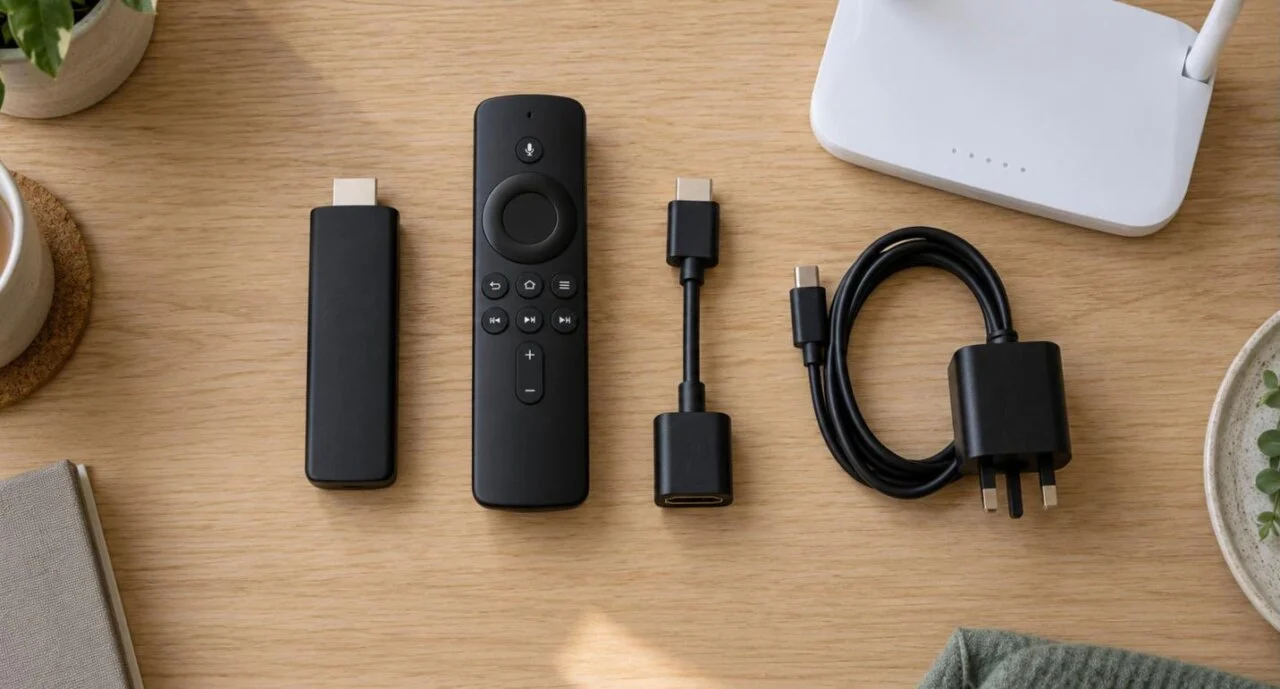
What do you need for IPTV on Firestick?
- A Firestick connected to Wi-Fi — ideally the 5 GHz band of your router. Anything from the Fire TV Stick Lite upwards works; the 4K and 4K Max are noticeably smoother for 4K streams.
- An Amazon account signed in on the Firestick so you can install apps from the Appstore.
- Your IPTV subscription details. Most providers serving Canada, including SmartVPro, send “Xtream Codes” details — a server URL (for example
http://example-server.com:8080), a username and a password — and an M3U link you can use instead. Keep the email open on your phone; you will type these once. - Ten minutes. For IPTV on Firestick, steps 1 and 2 are a one-off; afterwards you only reopen the player app.
If you do not have a subscription yet, you can test IPTV on Firestick with your own device first with the SmartVPro 24-hour trial for C$1.99 — the login it gives you works with every app below.
Step 1 — Allow apps from unknown sources
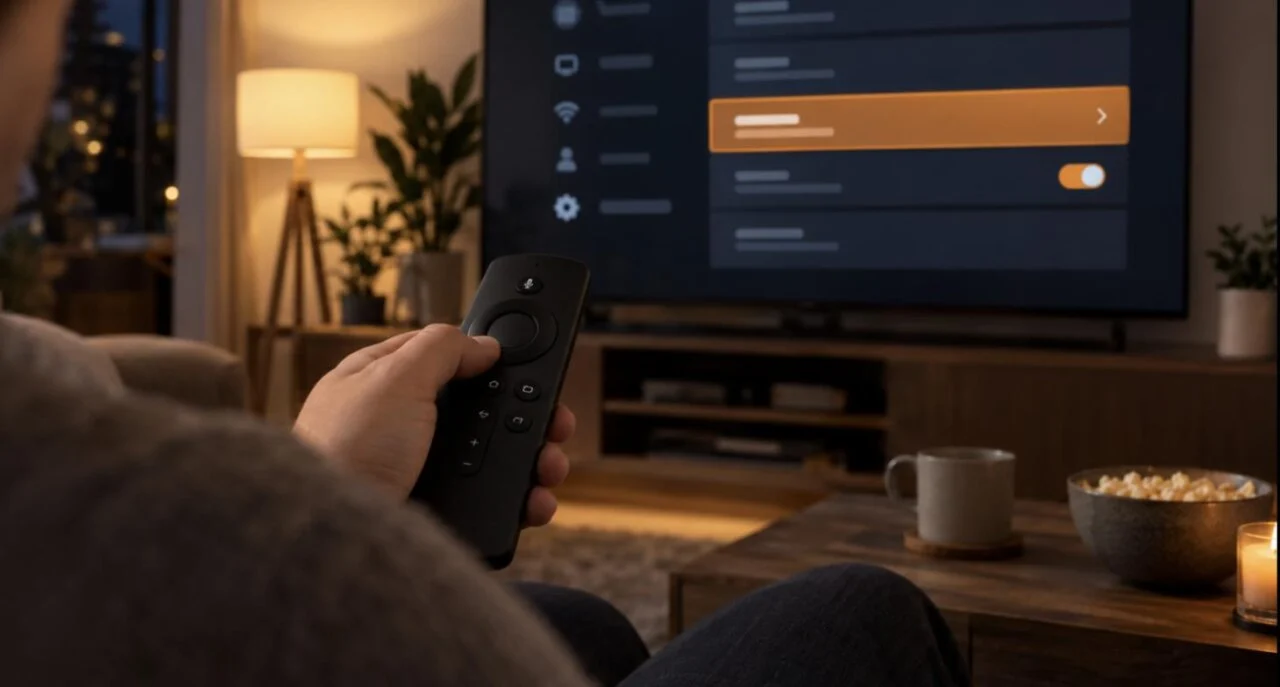
Setting up IPTV on Firestick starts here. IPTV player apps are installed with Downloader rather than from the Appstore, so the Firestick must be told to allow it. On current Fire OS versions the Developer options menu is hidden by default; here is how to reveal it.
- From the home screen, go to Settings (the gear icon) → My Fire TV.
- Select About, highlight the first line (Fire TV Stick / your device name) and press the select button seven times. A message says “You are now a developer”.
- Go back one screen. Developer options now appears under My Fire TV.
- Open it and choose Install unknown apps. Leave this screen for now — you will switch Downloader to ON here after Step 2. (On older Fire OS 6 devices the toggle is simply called Apps from Unknown Sources; turn it on.)
Step 2 — Install Downloader from the Amazon Appstore
- On the home screen select Find → Search and type Downloader.
- Choose the orange Downloader app (by AFTVnews) and press Get / Download. It is free and official.
- Go back to Settings → My Fire TV → Developer options → Install unknown apps and switch Downloader to ON.
- Open Downloader and press Allow when it asks for storage access. You will see a URL box in the middle of the screen — that is all you need.
Step 3 — Which app is best for IPTV on Firestick? (pick one)
Any of these three apps works with a SmartVPro login for IPTV on Firestick (see our full IPTV apps comparison for the rest). We install IPTV Smarters Pro for most first-time customers because it is free and the login screen is the simplest; TiviMate has the best guide and channel switching; IBO Player Pro suits households that want the same setup on several TVs.
| App | Best for | Price | Login method |
|---|---|---|---|
| IPTV Smarters Pro | Beginners; quickest setup | Free | Xtream Codes (username / password / URL) or M3U |
| TiviMate | Best EPG guide, recording, multi-view | Free (1 playlist) or Premium (around C$13/year) | Xtream Codes or M3U |
| IBO Player Pro | Families and multiple TVs, MAC-based activation | Free trial, then a small one-off fee | M3U link added on the developer’s activation page using the device MAC + key |
To install the app you chose: open Downloader, select the URL box and type the official download link shown on the app developer’s own website (TiviMate publishes its Fire TV link on tivimate.com, IBO Player on iboproapp.com and IPTV Smarters on its official site). Press Go, wait for the file to download, then press Install → Done. When Downloader offers to delete the installation file, choose Delete to free space. Only use links from the developer’s site — copies hosted elsewhere are the main way people end up with modified, unsafe apps.
Not sure which link is current for your IPTV on Firestick setup? SmartVPro customers can message support on WhatsApp and we send the link (or install the app for you over a quick call).
Step 4 — How do you log in to IPTV on Firestick?
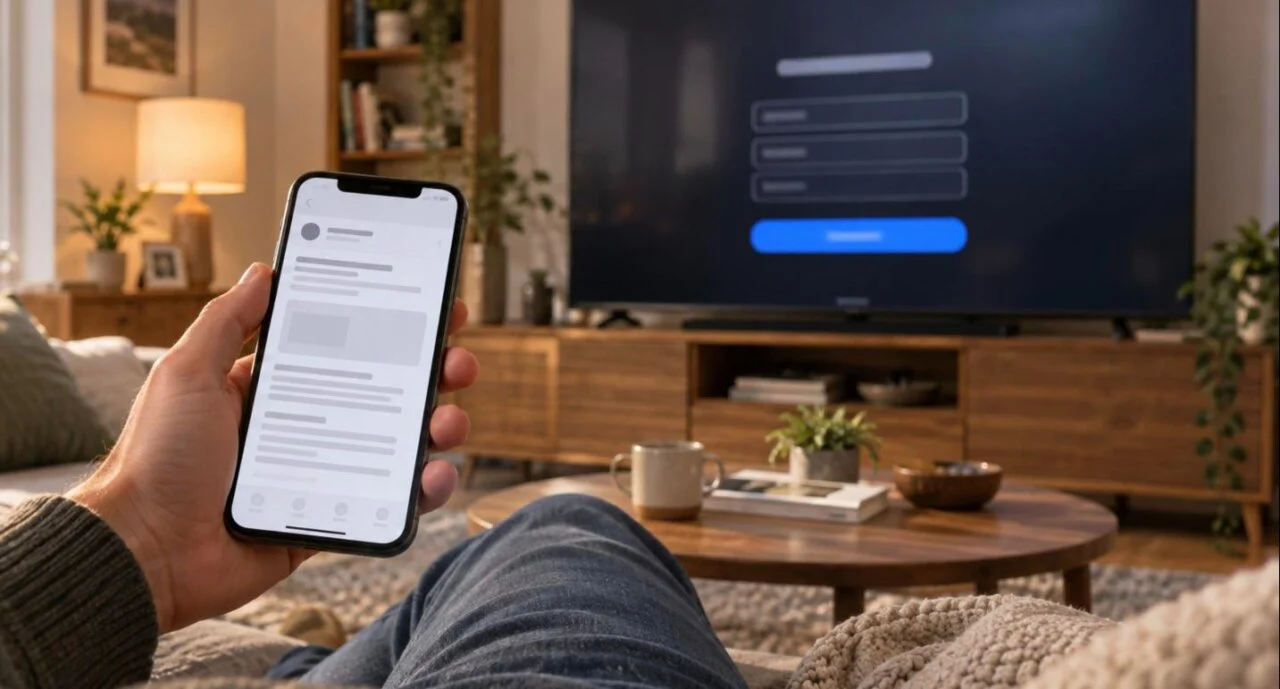
This is the last real step for IPTV on Firestick: enter the details from your activation email into the app you installed.
IPTV Smarters Pro
- Open the app from Your Apps & Channels (hold the Home button to find it) and accept the terms.
- Choose Login with Xtream Codes API.
- Enter any name (e.g. “SmartVPro”), then the username, password and server URL exactly as in your activation email, including the
http://and the port number. - Press Add User. The first load takes one to three minutes while the channel list and guide download; after that it opens in seconds.
TiviMate
- Open TiviMate → Add playlist → Xtream Codes login.
- Enter the server URL, username and password, then Next. Give the playlist a name and wait for the channels to load.
- The EPG (program guide) downloads automatically with Xtream logins. If it stays empty, open Settings → EPG → Update EPG. Our TiviMate IPTV guide covers the best decoder, buffer and Premium settings.
IBO Player Pro
- Open the app. It shows a MAC address and a device key on screen — photograph or note them.
- On a phone or laptop, go to the IBO Player activation page (linked from the app’s own site), enter the MAC and key, and paste your M3U link from your activation email. Give the playlist a name and save.
- Back on the Firestick, reopen IBO Player (or press reload) and the playlist appears. SmartVPro support will happily do this part for you if you send us the MAC and key on WhatsApp. Full details, settings and error fixes are in our IBO Player Pro guide.
Step 5 — EPG, favourites and channel groups
A few minutes here makes IPTV on Firestick feel like a proper TV box rather than a list of thousands of channels.
- Hide the groups you never watch. All three apps let you hide country or category groups (IPTV Smarters: Settings → Manage categories; TiviMate: Settings → Playlists → Manage groups). Keep Canada, USA, Sports, Movies and the countries you actually use.
- Add favourites. Long-press (or press the menu button) on your local news channel, the Canadian and US sports networks and the channels you watch nightly. Favourites sit at the top of the guide.
- Set the EPG time offset if the guide is out. In TiviMate and IPTV Smarters the EPG settings have a “time shift” — adjust it until a live game’s start time matches your clock. The offset differs between Pacific, Mountain, Central, Eastern and Atlantic time, so check it once and forget it.
- Turn on parental control if children use IPTV on Firestick; each app has a PIN lock for adult groups.
How do you stop IPTV on Firestick buffering?
Nine times out of ten, buffering with IPTV on Firestick is the device or the Wi-Fi, not the IPTV service. Work through these IPTV on Firestick fixes in order — they fix the vast majority of tickets we receive. (The speed each quality level needs is in our IPTV streaming guide.)
- Use the 5 GHz Wi-Fi band (your router usually broadcasts two names; pick the one ending in 5G or 5GHz), or a Fire TV Ethernet adapter for a wired connection. A Fire TV Stick 4K Max also supports Wi-Fi 6.
- Check your speed. HD needs about 8–10 Mbps per stream, 4K about 25 Mbps. Run a speed test on a phone next to the TV; if it is far below your broadband plan, the router position is the problem.
- Clear the app cache: Settings → Applications → Manage Installed Applications → your IPTV app → Clear cache. Do this every couple of weeks.
- Close background apps. Firesticks have limited memory. Force-stop apps you are not using, and restart the Firestick weekly (Settings → My Fire TV → Restart).
- Switch the video decoder. In IPTV Smarters: Settings → Player selection → try the native player or the ExoPlayer; in TiviMate: Settings → Playback → Decoder → Hardware / Hardware+ / Software. If one setting stutters, another usually plays smoothly.
- Change the stream format where the app allows it (MPEG-TS vs HLS/M3U8). TS is usually the most stable for live sport.
- Free up storage. Uninstall apps you do not use; a Firestick with under 1 GB free slows down everywhere, not just in IPTV.
- Turn off a slow VPN. A VPN server on the other side of Europe can halve your speed. If you use one, pick a nearby Canadian or US server.
If everything above checks out and one specific channel still buffers at peak time with IPTV on Firestick, that is a provider issue — tell support which channel and when. SmartVPro monitors peak-time load on game nights, so we can usually move you to a better stream for that channel.
Which Firestick is best for IPTV on Firestick streaming?
Every current model runs IPTV on Firestick without trouble; the differences are speed, 4K support and Wi-Fi.
| Model | IPTV verdict |
|---|---|
| Fire TV Stick Lite / HD | Fine for HD channels on a good 5 GHz connection. Slower menus, no 4K. |
| Fire TV Stick 4K | The sweet spot: faster processor, 4K and HDR, handles TiviMate with a large channel list comfortably. |
| Fire TV Stick 4K Max | Best stick for IPTV — more RAM, Wi-Fi 6, quickest channel switching. Worth it if you watch a lot of live sport. |
| Fire TV Cube | Fastest of all with an Ethernet port built in. Overkill for most, ideal for a main living-room TV. |
Troubleshooting: common IPTV on Firestick problems
| Problem | Fix |
|---|---|
| Downloader says “Install blocked” | Go back to Step 1 and switch Downloader ON under Install unknown apps. |
| “Can’t parse” or “File not found” in Downloader | A typo in the link. Re-type it carefully, including https://, or ask support to send the exact link. |
| “Invalid credentials” / “Account expired” | Check the server URL includes the port (e.g. :8080) and there are no spaces. If the subscription has ended, renew on the pricing page. |
| Channels load but the screen is black | Change the decoder/player in the app settings (see the IPTV on Firestick buffering section) and restart the Firestick. |
| No program guide (EPG) | Update the EPG manually in the app settings; if it stays empty, wait 10 minutes after first login and try again. |
| App disappears from the home screen | It is still installed — hold Home → Apps, or ask Alexa to open it. Move it to the front row with the Menu button. |
| Audio out of sync | Switch the decoder to software, or in TiviMate turn on “Audio passthrough” only if your TV supports it. |
Is IPTV on Firestick legal in Canada?
Using IPTV on Firestick is legal in Canada as long as the service itself is legitimate. The Firestick, Downloader and the player apps are all legal — they are general-purpose tools. What matters is the service you log into and whether it has the right to distribute the content it streams; under Canada’s Copyright Act it is your responsibility to make sure you have the right to view what you access. Check that a provider is a real business with a published address, clear terms, CAD pricing and a refund policy before you pay (our guide to choosing IPTV from Canada has the full checklist), and avoid “lifetime” deals and sellers who only accept untraceable payments. SmartVPro publishes its terms, refund policy and company details, including where the team is based.
Ready to try IPTV on Firestick yourself?
Get a full 24-hour SmartVPro trial for C$1.99 — every channel, 4K VOD and live sports — and follow the IPTV on Firestick steps above with a real login. Payment instructions (Interac e-Transfer, PayPal or card) arrive by email in 5 minutes to 3 hours, and activation usually takes about 5 minutes once paid.
IPTV on Firestick: frequently asked questions
Can I install IPTV on any Firestick?
Yes. IPTV on Firestick works on every Fire TV Stick sold in Canada — Lite, HD, 4K, 4K Max — and the Fire TV Cube can run IPTV Smarters, TiviMate or IBO Player. The 4K and 4K Max are smoother for 4K channels and large channel lists.
Do I need Downloader to install IPTV on a Firestick?
Usually, yes. For IPTV on Firestick, most player apps are not in the Amazon Appstore, so Downloader (free, from the Appstore) is the easiest way to install them. Some apps also appear in the Appstore from time to time; if yours does, you can install it directly.
Which IPTV app is best for a Firestick?
For IPTV on Firestick, IPTV Smarters Pro is the easiest for beginners and free. TiviMate has the best program guide and channel switching but the full version is a paid subscription. IBO Player Pro is popular for families because one activation works across several TVs.
What details do I enter in the IPTV app?
Your provider sends Xtream Codes details: a server URL (with port number), a username and a password. Enter them exactly as written. Most apps also accept an M3U playlist link instead.
Why does my IPTV buffer on the Firestick?
The most common causes of IPTV on Firestick buffering are 2.4 GHz Wi-Fi, a full app cache, too many background apps and the wrong video decoder. Switch to 5 GHz, clear the cache, restart the Firestick and try a different decoder before blaming the service.
Do I need a VPN to use IPTV on a Firestick?
No. A VPN is not required for IPTV on Firestick. If you use one for privacy, choose a fast Canadian or US server, because a slow VPN is a frequent cause of buffering.
Will my IPTV app disappear after a Firestick update?
No. Fire OS updates keep sideloaded apps. If you cannot see the app on the home screen, hold the Home button and open Apps, or move it to the front row.
Can I use the same IPTV login on a Firestick and my phone?
Only if your plan allows more than one connection — IPTV on Firestick counts as one device. SmartVPro plans are sold for 1 to 4 devices; a 2-device plan lets a Firestick and a phone stream at the same time.

Get the next IPTV guide by email
New setup guides, app comparisons and buffering fixes for UK viewers – about two emails a month, no spam, unsubscribe in one click.